

This is just for fun, something I put on the 1st tab of an annual recap report for the company. If you’re reading something this nerdy, I assume you have basic knowledge of Excel.
Step 1
Open up a new Excel sheet and select all cells in the sheet by clicking the top left square. Change the width to 50 pixels and the height to 90 pixels for all columns

Step 2 — Fill in the cell in the top middle of your Excel file with Dark Green and add in conditional formatting
Click into cell in the top middle of the sheet and input this formula: =RANDBETWEEN(1,3). This will assign a random number between 1 and 3 (we will use this later).
Also make this cell Dark Green.
From the “HOME” tab up top, find “Conditional Formatting”.
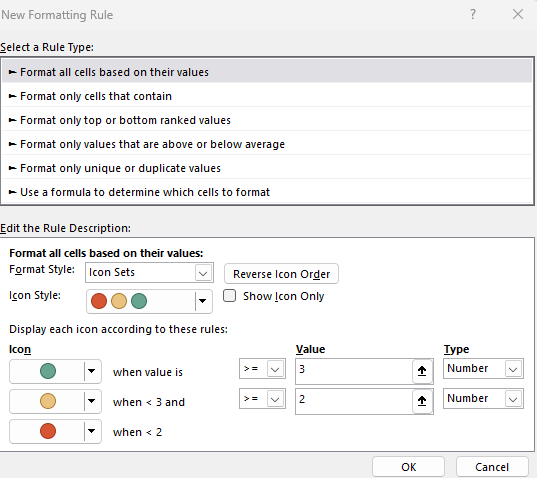
Click “Icon Sets” –> Then Click “More Rules”. Make it look like this picture below
You output should now look similar to this:
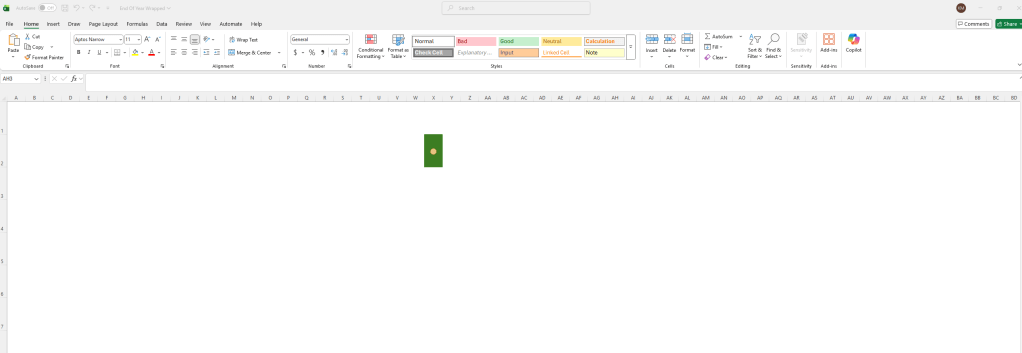
Center the cell using the alignment buttons at the top.
Step 3: Fill Out Your Tree:
Copy and past this cell downward and outward until you have your tree:
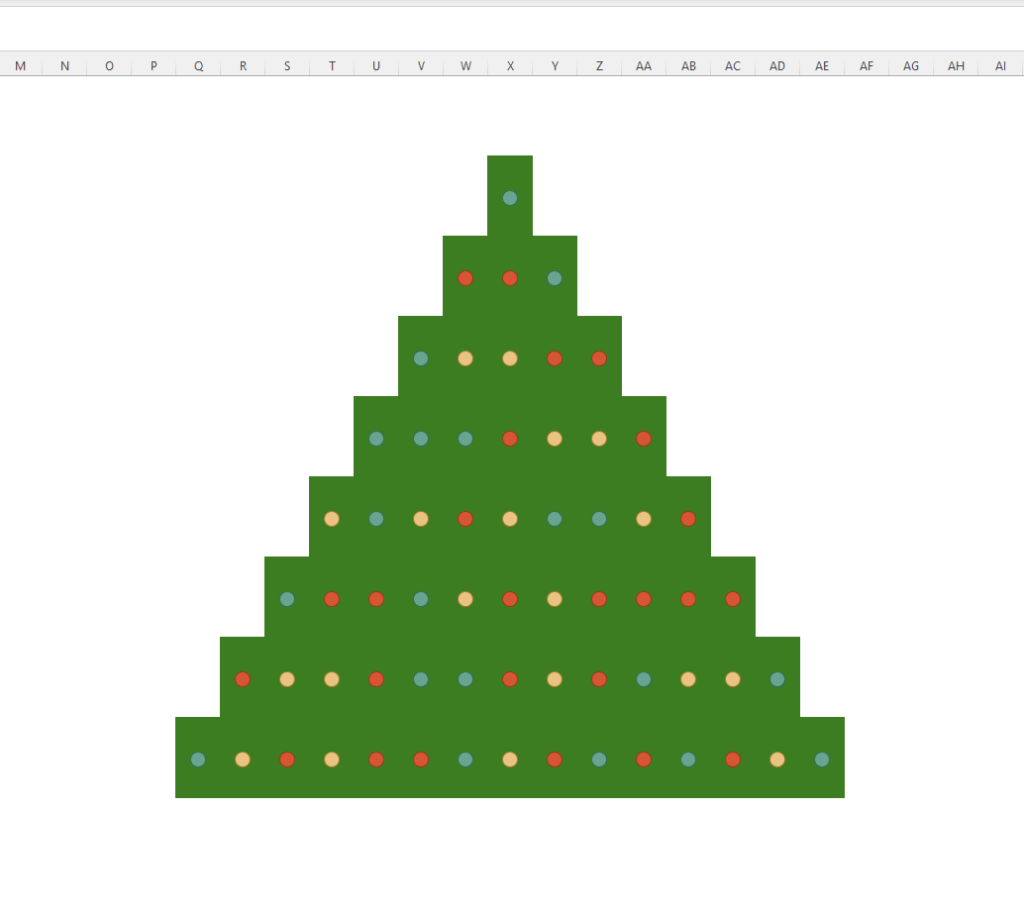
You should now be able to hold F9 down or hit it repeatedly and make your lights “twinkle”!
Step 4 – Get Creative!
Add all of the pictures and wording you’d like, here is mine!
Merry Christmas!





 Kylelar Maravich Business Page
Leave a comment